 COME
Tapped COME Download and Got a Web Page? Start Here
If the COME button opens a web page, you have reached an entry stage. Check what the destination offers before expecting a file in your Downloads folder.
Identify what actually opened
Look for the browser address bar and the destination domain. A page can display app-like navigation without installing anything on the phone. Do not count the arrival of a page, an account prompt or a promotional banner as a completed APK transfer.
Recognise the interface without assuming installation
The COME screen shown here groups content under Explore, Casino, Fantasy, Rummy and Sports. Those categories help identify the subject you are viewing. They do not reveal whether you are using a website or an installed Android package.
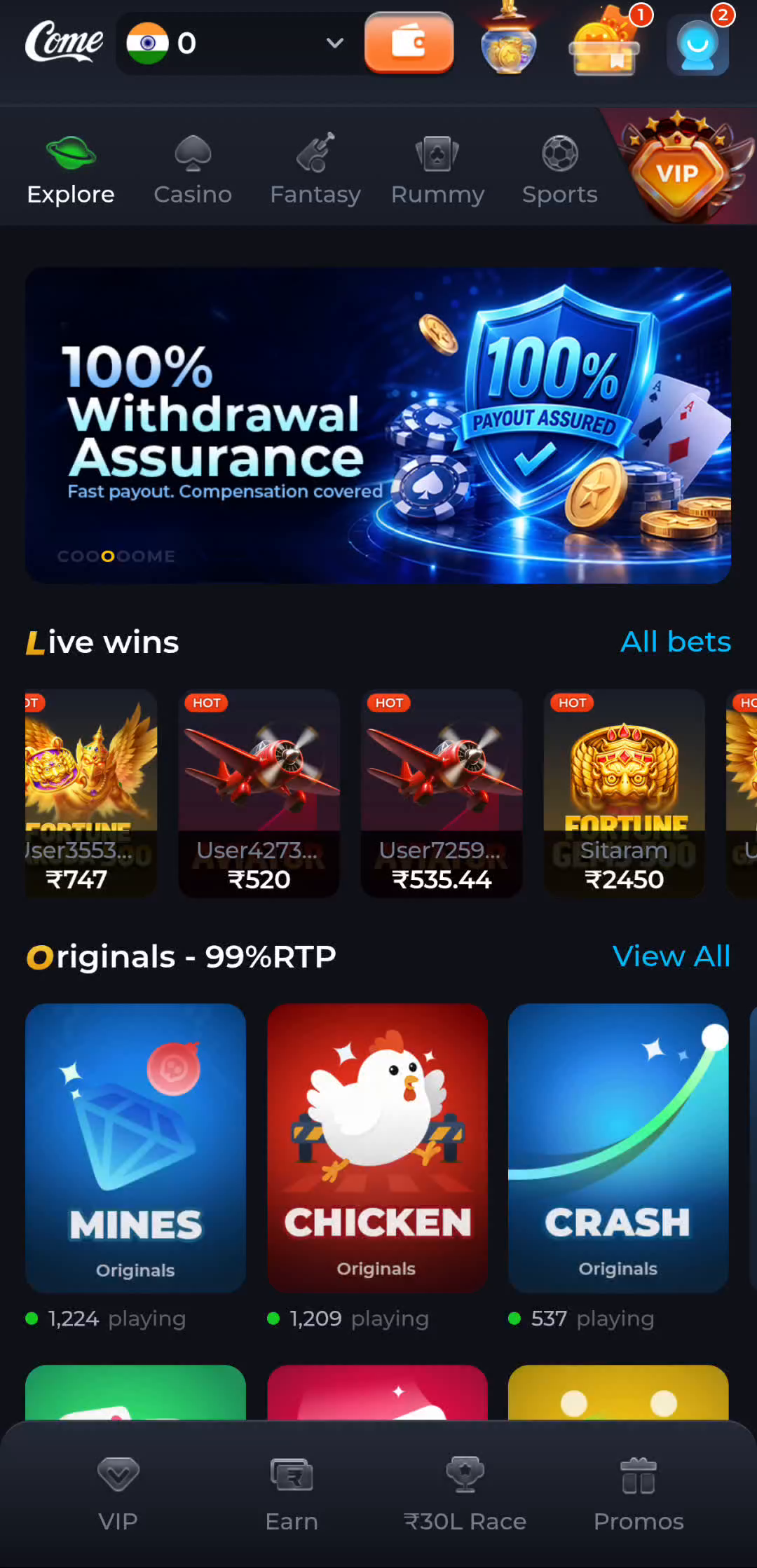
Look for a distinct Android download action
Read the page for a clearly described Android file option. If one exists, review its app name and file details before selecting it. If there is no download option, stop at that point rather than tapping unrelated ads or granting notification permission in the hope that a file will appear.
Check for a completed transfer
Inspect the browser’s download history or the phone’s file manager. A completed APK is different from a web page saved for offline reading. Only open a file after you have checked its source and identity; keep Android protection enabled and investigate any warning.
Choose the correct next guide
No file means you are still at the page or transfer stage. A file that will not install belongs to installation troubleshooting. An app that opens but cannot sign in belongs to account help. Naming the stage prevents repeated clicks that do not address the problem.