 COME
Where Did Your COME Download Stop?
First name the last stage that completed: page opened, file received, installation completed or app launched. Each stage gives you a different place to investigate.
The page did not load
Check whether other ordinary pages load on the same connection and note the error shown at the COME destination. Try a trusted connection if appropriate. An unavailable external page is not evidence that the Android file is damaged because no file has been received yet.
The transfer started but did not finish
Look at the browser’s transfer status and available storage. Keep the exact failure message. Do not open an incomplete file or repeatedly create new copies without checking why the transfer stopped. A completed web page load and a completed file transfer have separate status indicators.
The app reports a network issue
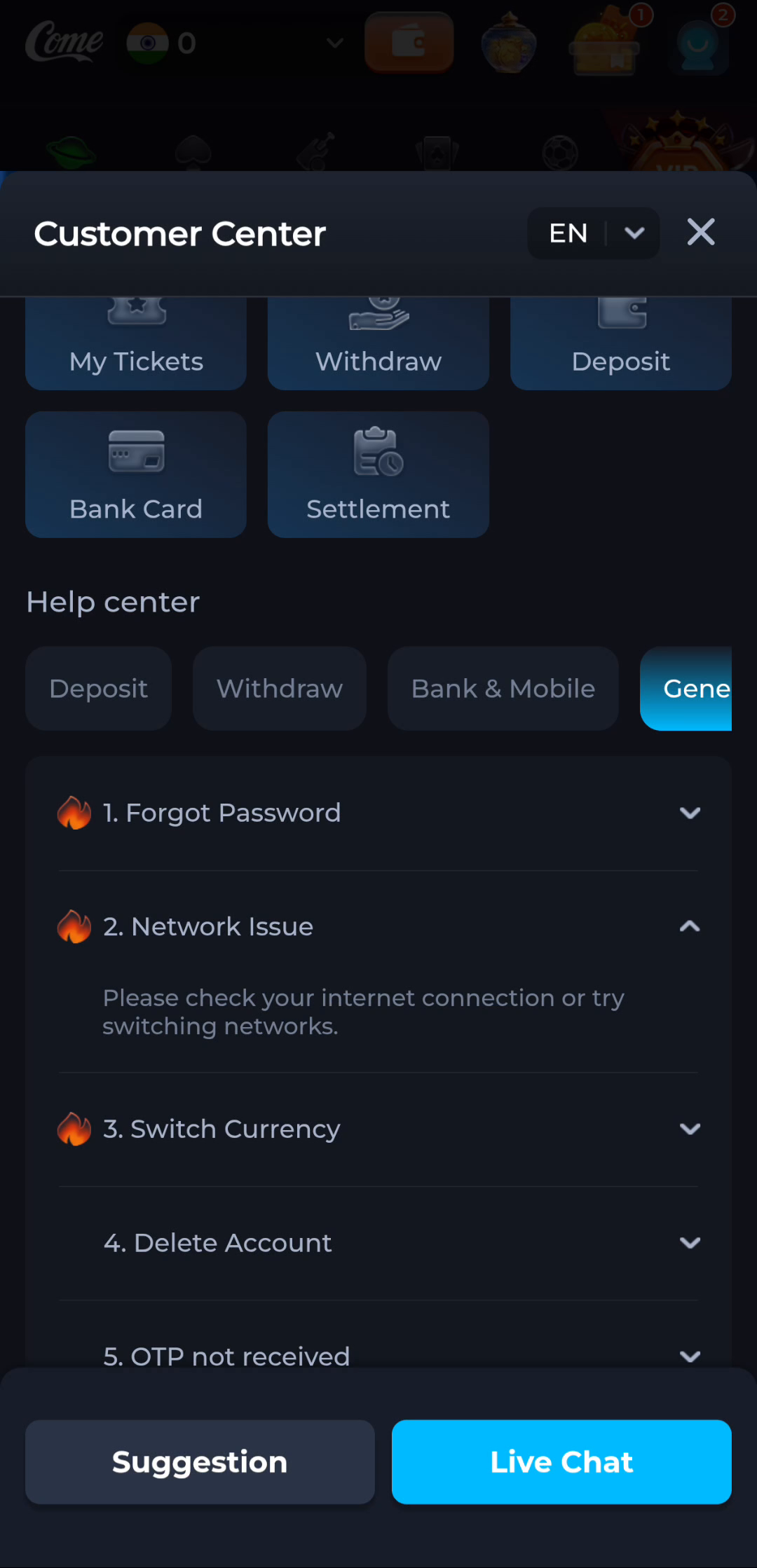
The COME help screen has a Network Issue topic that advises checking the connection or trying another network. Apply that check to the stage where the message appears. It will not resolve every installer warning or account problem.
Android refused the installation
Record the installer’s wording, the file source and the app identity. Do not disable Google Play Protect or remove an existing installation simply to silence a conflict. Device policy, file identity and compatibility need investigation before another attempt.
The app opened but the task failed
At this stage, redownloading may not address the problem. Note whether the issue is sign-in, an unavailable page or connectivity inside the app. Send a concise description through the relevant help route and exclude passwords, verification codes and payment details.