 COME
Choose a COME Help Topic After the App Opens
Once COME opens, choose help by the problem you see. A forgotten password and a network error are different tasks even when both stop you reaching the next screen.
Match the symptom to a topic
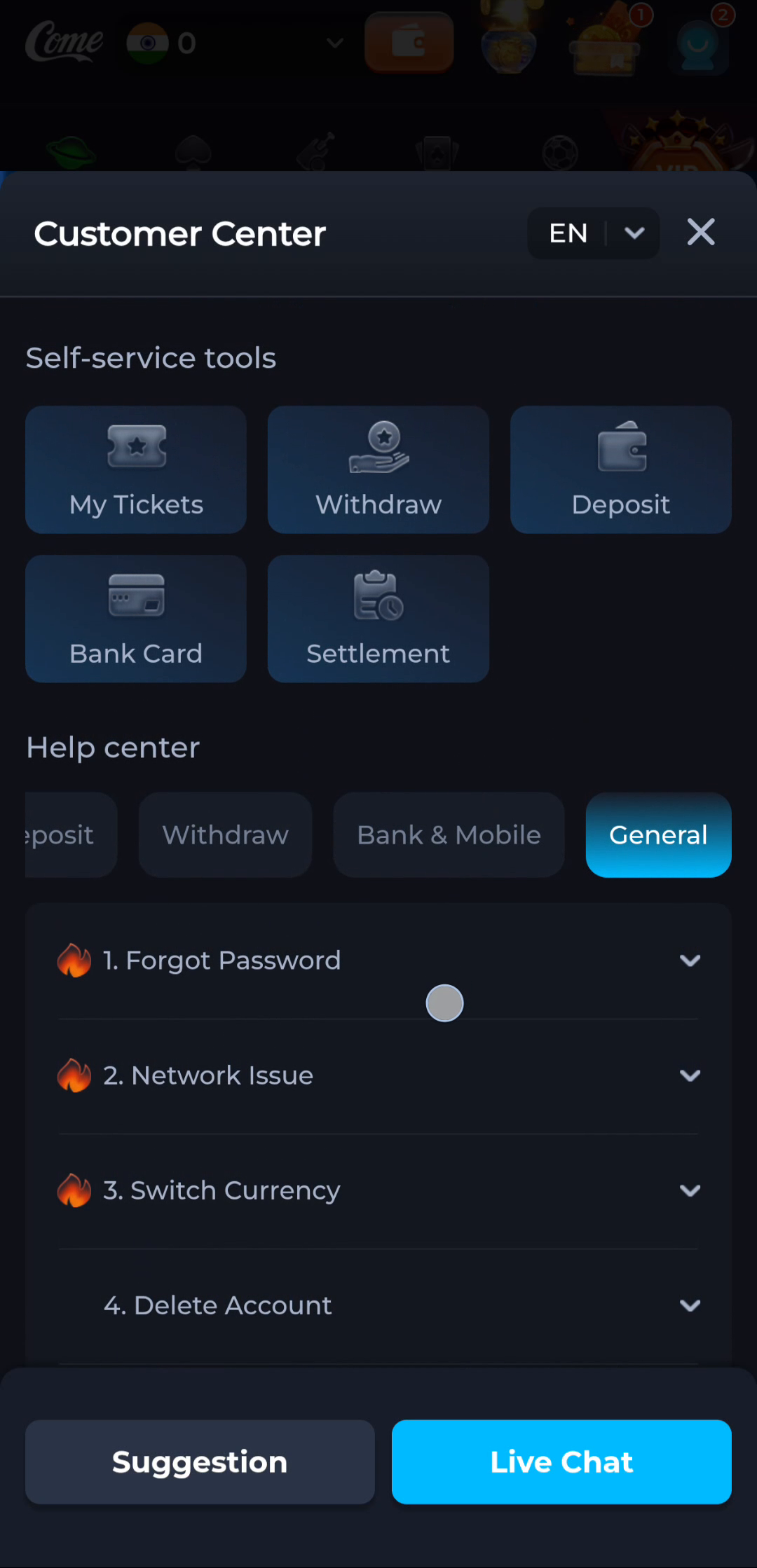
The General section in the pictured Customer Center lists Forgot Password and Network Issue among its topics. Start with the closest description, read the advice and check whether it matches the exact screen you are using.
Describe where the issue happened
Say whether you are in a browser, at an Android installer prompt or inside an installed app. For a sign-in error, record the message without including the password. For a page that fails to load, state whether the rest of the app remains accessible.
Collect enough context
A concise report includes the time, device type, app version if visible and the action immediately before the problem. A screenshot should show the error itself, with private account details removed before sharing. Avoid sending a full screen of unrelated account information.
Use support controls carefully
The screenshot shows Suggestion and Live Chat controls, but availability can vary. Use the route shown in the service you are visiting. A social-media account with a matching logo is not automatically the same support channel.
Return to download help only for that task
Reinstalling is not a general password-recovery method. If the problem actually concerns receiving or installing a file, return to the download guide and identify that stage. Otherwise keep the existing installation available while you resolve the account or in-app issue.