 COME
After Installing COME: First Open and Account Access
After installation, check the app that opens and read its first prompts. Installing an APK does not recover an account or confirm that a sign-in attempt succeeded.
Confirm the app rather than the shortcut
Open the item from your Android app list and inspect its app information if you are unsure what was installed. A home-screen shortcut may instead open a browser page. Check the app name and permissions before entering credentials or making changes.
Keep existing account access available
If you already use COME on another installation, make sure you can reach the normal sign-in or recovery method before logging out there. Do not assume another APK will create a copy of your account data. Follow the service’s actual prompts rather than guessing a new registration is required.
Use the visible menu for the next task
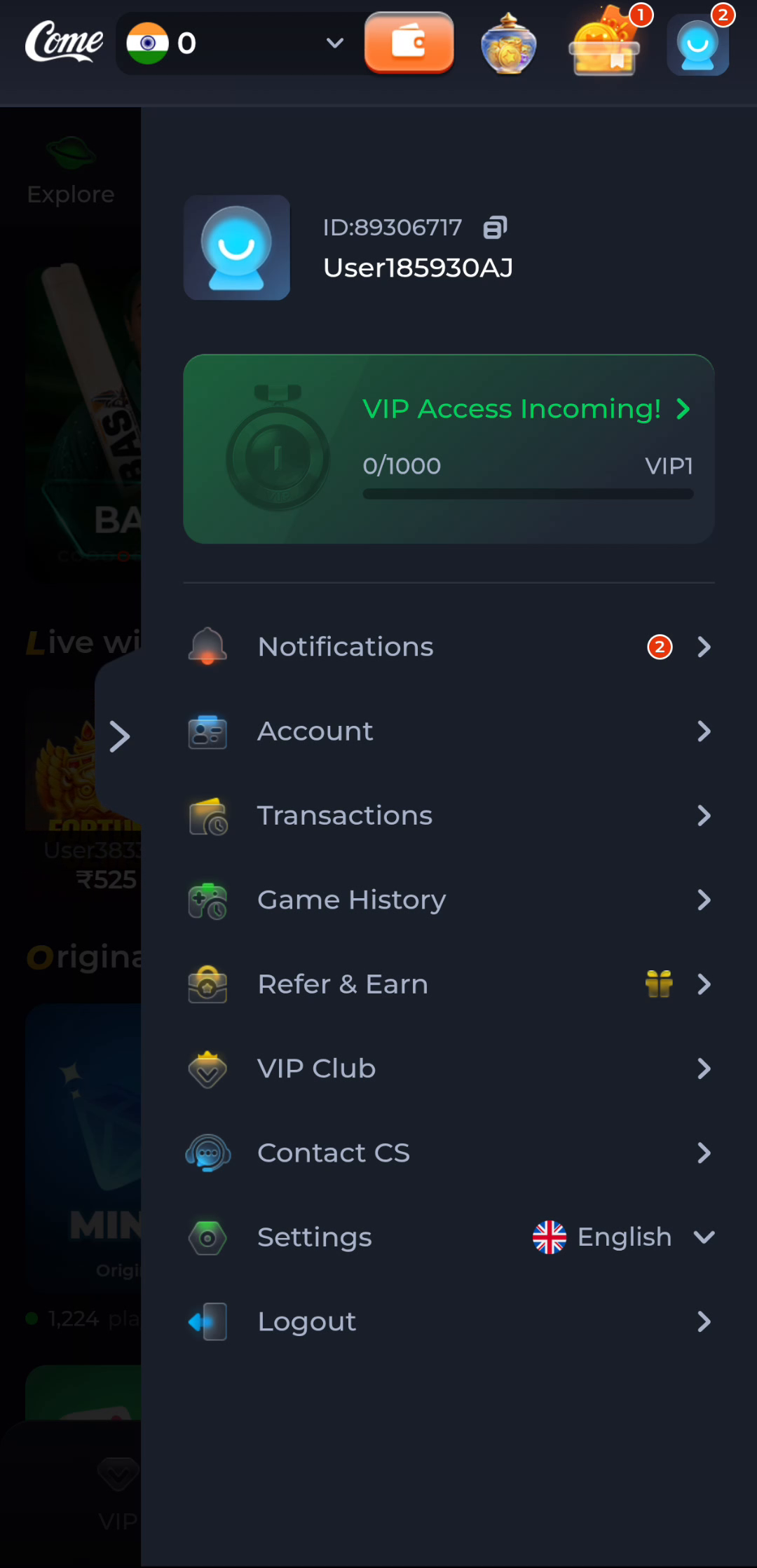
The account menu contains separate Account, Contact CS, Settings and Logout entries. Use the control that matches your question. A preference change can usually be investigated without logging out; a sign-in problem should go through account help.
Review requests in context
Consider whether a requested Android permission fits the feature you are trying to use. App preferences and device permissions are different controls. If a page asks for a password, verify the destination before typing; never send a one-time code to someone claiming to troubleshoot your installation.
Record a specific first-open failure
A useful report says whether the app closed, a screen stayed blank or a sign-in message appeared. Include the time and app version if visible. Keep the original installation available while investigating instead of repeatedly deleting data.