 COME
COME Check Update Opens a Page but No APK Appears
An update action can lead to a page before any file is offered. Read the page and compare the release details; opening it alone does not mean an update has been downloaded.
Read the status before following the link
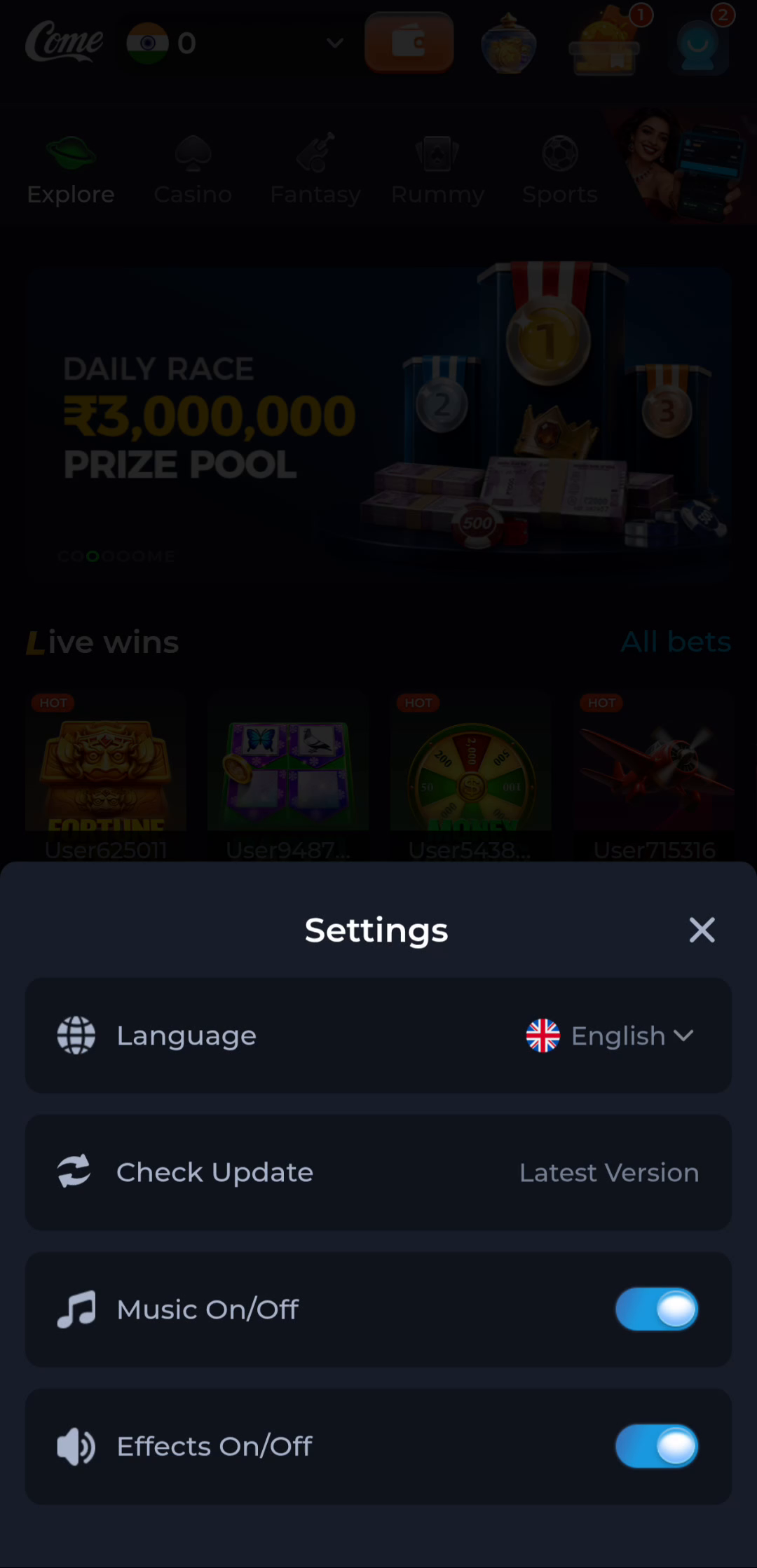
The Settings image places Check Update alongside Language, Music and Effects. A Latest Version status is not a numbered file release. Note the message in your own app before moving to the browser so you can distinguish a status check from a download.
Inspect the new destination
Check the address and look for a clearly described Android download option. A promotional card or page header can appear without a downloadable APK. If the page provides no file, keep the working installation and use the service’s help route to ask what update action is intended.
Compare the offered details
When a file is available, compare the app identity and version with your installed copy. Do not use a campaign edition label as a substitute for release information. If the browser still shows no completed transfer, do not search for an installer that has not arrived.
Handle a failed transfer separately
Record the browser’s error and confirm the available storage and connection. A page-loading problem is different from an installer conflict. Keep Google Play Protect enabled and investigate warnings instead of bypassing them to test the update.
Verify the final change
After a successful update, open COME and check the version or behaviour you expected to change. If only a browser tab opened, the old installation may be unchanged. Keep that distinction in any support request so the report describes what actually happened.